Showing posts with label information management. Show all posts

Saturday, January 4, 2014

Recall Everything You Read Online - A Model For Information Management

Google Reader was one of my favorite information management tools.  Since Google discontinued it, I have been searching for the best option and settled on Feedly for multiple reasons:
  • Seamlessly imported my feeds from Google Reader
  • Free
  • Nice interface
  • Works on all my devices and various operating systems
  • Adding content works well - finds most of the feeds I need without having to input the exact RSS feed URL
  • Nice features for saving to Pocket and sharing to various social networks.

Feedly does have a  few minor limitations which one can live with:

  • On a desktop, you cannot find a tag by typing the first 1 or 2 letters.  You have to scroll down which can be a pain if you have a long tag list
  • Does not allow to export OPML (your feed bundle) for just a subset of your feeds.  It is all or none.

But there are 2 things that bother me the most:

  • The free version shows only one search result - this is a huge problem as it is easier to find something in the same app where you first read it.
  • The solution to this would be to share to a searchable bookmarking site like Diigo but the free version does not allow custom sharing and Diigo is not one of the options in the free version.

But then I found the solution that works quite well using IFTTT.com and it goes like this:

  1. Make sure you have you use your Google log in to create accounts on 
  2. Go to Feedly and create a tag called "Diigo" 
    • Use a RSS feed suggested by Feedly
      • Add any content to feedly (even one RSS feed) 
      • Click on one feed item >> tag >> create tag >> Diigo
    • Or you can import my cardiology and medicine journal feeds 
      • From here http://goo.gl/bTJy2X (make sure you SAVE the file)
      • Go to Feedly>>organize>>Import OPML (http://feedly.com/#cortex)
      • Import the file you just saved
      • Now you should have several excellent feeds
      • Select one feed item and tag >> create tag >> Diigo
  3. Go to If This Then That (www.ifttt.com) and register
  4. Find the recipes for feedly (there are several) to share to Diigo.  The one I use is available here (https://ifttt.com/recipes/138162)
  5. Now every time you save a feed item so you can find it again do the following
    • Tag the feed item with Diigo
    • This item will automatically be saved to your Diigo profile
    • Diigo is searchable and thus everything you deemed worth saving is now searchable!
  6. Power step - search from Google!
    • I love Diigo because when I search anything on Google, it also searches my Diigo items.
    • I use Chrome as my default browser
    • Get the Diigo Chrome extension
    • In options make sure you check "Search Diigo when searching Google"
    • TaDa!

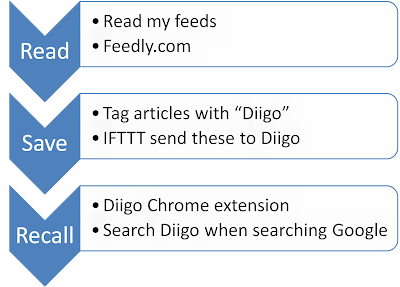
So my information workflow goes something like this:


This is actually works quite well as most people tend to use Google to do their searches, this process will automatically show if there are any items related to that search term on Diigo and one can access these with one click.  In addition, since you can use Diigo to bookmark webpages that you come across when surfing, you can now recall items that you read outside of Feedly.

Enable searching Diigo when searching Google in the Diigo Chrome extension options

In this example searching for Cholesterol guidelines brings up 3 items stored in my Diigo Library


Saturday, October 26, 2013

3 tools to help remember and find information

We are inundated with information.  While some would call it information overload, the word "overload" has a negative connotation.  Is it not better to have so much information rather than not have any?  A better term is information abundance.

The challenge is to use tools that will help make the most of this information abundance.  Here are 3 simple tools to help get started:

1.  Diigo

This is one of many excellent social bookmarking tools.  Get the Diigo extension for the Chrome browser and start bookmarking and adding notes and highlights to web pages that you want to find again.  When you search for information using Google Search, it will automatically display results from Diigo that you might have bookmarked earlier.  Make sure you check the box under settings to "Search your Diigo library when searching Google.


Thus when I search for the famous study by Drs. Sparrow and Wegner on how using Google changes our memory, it brings up results both from my Diigo library and from the Web.
Searching Diigo when doing a Google Web search

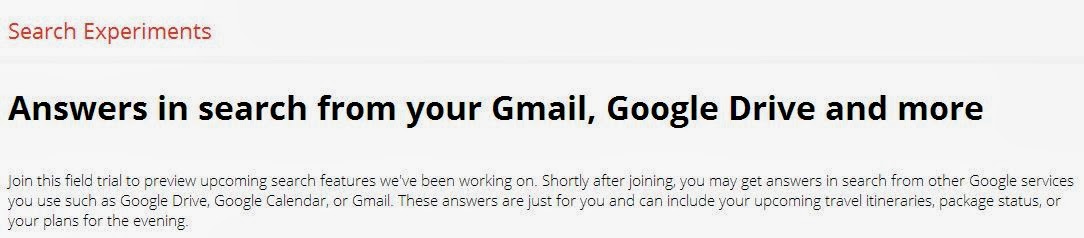
2.  Google Search for Drive and Gmail

Another tool to use is the ability to search through your email and Google Drive from the Google search.  While this is still in trial, anyone can sign up to be part of this.

Seach Google Drive and Gmail from Google search

3.  Memobutton 

This is another extension for Chrome and is based on the Spaced Learning theory.  It allows you to create flashcards for yourself as you surf the web and come across critical bits of information that you want to remember.  Just click the memobutton in the extension toolbar, and paste the text into the pop-up.  Double click the key word you want to remember and it makes a flashcard.  It then reminds you to review these flash cards periodically.  

Creating flashcards while surfing the web - get periodic reminders till you master the content

There are many other tools but if you use Chrome as your default browser these will meet most of your needs for storing and searching and remembering information that you find.


Sunday, December 9, 2012

Don't ban mobile devices from meetings; leverage them!

Just read a post on Techcrunch "Tech Is Making Meetings Worse, It’s Time For Digital Hat Racks" which recommends that we should make people check in their mobile devices before starting a meeting.  The author Nir Eyal feels that there are only rare occasions when attendees actually use their devices in a productive manner and thus these act as distractors.  
From Techcrunch linked to http://techcrunch.com/2012/12/09/digital-hat-racks/

This is issue is very similar to faculty members complaining about their students not paying attention during class, spending time on Facebook or texting instead.

My response to this post is that one can have very productive meetings when we use devices appropriately.  I find that meetings can be excellent working meetings when we have laptops and other mobile devices and use them purposefully.  I am involved in several standing meetings through out the week which follow the following model:

  1. The team has a shared folder on Google Drive
  2. Before each meeting, a document is created in the shared folder - the title is the date of the meeting
  3. Participants populate the document with agenda items prior to the meeting
  4. During the meeting one laptop is used to project the Agenda document on the screen
  5. At least one other person uses another device, usually a laptop to load the same document and edit it collaboratively.  This device is often passed around among the attendees depending on who needs to edit it.
  6. During the meeting we use the devices to
    1. Look up information - rather than assigning the task to someone to look up after the meeting and thus postponing the decision making to the next meeting
    2. Communicating - often via email or alpha pagers (yes we still use those) - send message to get answers or more information.  
    3. Project data or web sites 
    4. This information is entered into the agenda document which essentially becomes the meeting minutes.
  7. Since everyone has access to the document, no minutes need to be emailed, or approved.  
  8. While a lot of work does get done during the meeting, we of course make decisions about projects and this is captured on Trello.  We use Trello as a project management tool.  This serves to bridge the meetings by creating a list of to dos for each project and assigns these to a team member.  Team members review Trello between meetings and use this to organize their work and then update the agenda document for the next meeting.
This model has worked very well for us and we have expanded it to create a Google+ circle of team members.  This allows us to do hangouts for meetings where someone is unable to attend in person and also continue the conversation between meetings.  

The same model can be adopted for learning sessions, but the faculty need to be aware of and comfortable with technology tools that can help improve the learning experience and make the process more active, fun and efficient.