Showing posts with label PowerPoint. Show all posts

Sunday, April 29, 2018

And..... Office Mix is back (well almost!)

The previous post was all about the death of Office Mix and a search for alternatives. 
The best option was

  • Create a narrated slideshow in PowerPoint
  • Save as a video
  • Upload to YouTube as an unlisted video
  • Use EdPuzzle to embed the video and insert questions
This solution is probably the optimal one at this point as the EdPuzzle interface is quite intuitive and it has decent learning analytics.  

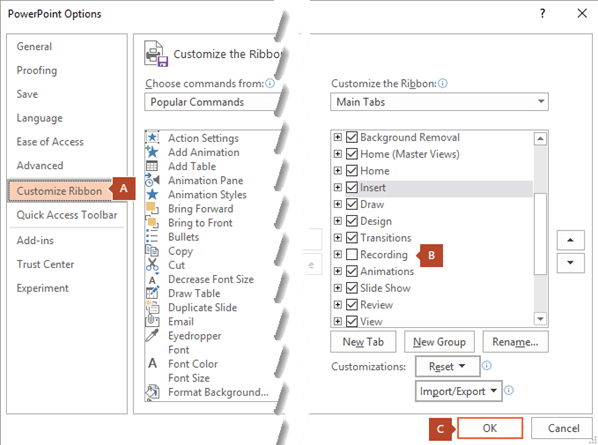
But it seems Office Mix is being reborn as an embedded feature in PowerPoint.  MS had promised as much but it is good to see that the first part of that promise is now delivered.  If you have Office 365, you can enable the "recording tab" and this includes all the features that were provided by the Office Mix add-on.
Adding a Recording Tab to PowerPoint


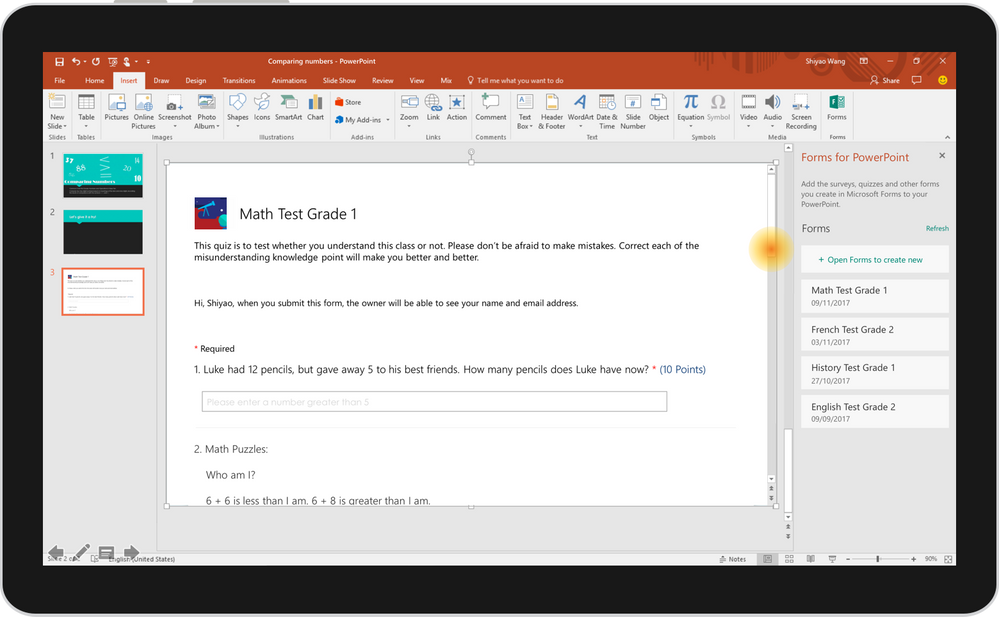
MS plans to support quizzes using MS forms and hosting using MS Stream.  


Adding quizzes in PowerPoint using MS Forms (under development)

I look forward hopefully to when these will be available and work seamlessly like Office Mix did.


Monday, May 16, 2016

Google Slides Q & A - Collect audience questions

Google Slides is a very good free presentation tool.  It is particularly good if you want to:

  1. Collaborate with multiple presenters to build a slide deck
  2. Present to a worldwide audience via Google Hangout
  3. Present from a mobile device like a smartphone
And now Slides has added a new feature that makes it incredibly useful for almost any presentation setting.  Slides now can allow for collection of questions during a presentation. You can read more about this feature here, or watch the following video:


The steps are pretty straightforward:
  1. Create/upload a presentation (you can upload a PowerPoint presentation and it will be converted to Slides format 
  2. At presentation time, in the upper right corner use the drop down next to "Present" and select "Use new audience Q & A.."
  3. Click start new 
  4. The URL for the Q & A page will be displayed on your slide.
  5. Users can enter questions (anonymously or not)
  6. They can vote others' questions up or down
  7. You can see the most popular questions and answer them during or at the end of the presentation
This is a great tool to engage your audience and make your teaching more student-centered.

I recently used this tool for the first time at a keynote I was delivering at the Massachusetts General Hospital ECOTE 16 education symposium.  While using this feature was easy, I had a slight wrinkle.  I like PowerPoint due to the granular control on graphics, animations and transitions and also I present using a Surface Pro that lets me write on the slides as I present.  I did not want to give up on this functionality.  


So I ran Google Slides in the background!  I went through the present >> use audience Q/A steps, >> grabbed the URL for submitting questions and pasted this on my intro slide in PowerPoint.

It went like a charm.  I got the best of both worlds -- PowerPoint on a Surface Pro and Google Slides in the background to collect questions!  I was able to answer some of the most popular questions before running out of time.  But I was able to review all the questions that got asked which helps me prepare for a similar talk I might give in the future.

Here is a list of all the questions which I was able to get from the "tools" menu in Google Slides.

Saturday, February 5, 2011

PowerPoint Bulleted List Theorem

Most of us associate PowerPoint with lectures in large darked halls with many slides of bulleted lists accompanied by a droning voice.  So what is wrong with the bulleted lists in PowerPoint?  I was preparing to conduct a workshop on PowerPoint and Education and found some theoretical basis for why we should not use bulleted lists when presenting.  As you see, I do use them freely in documents.
[This is presented as a theorem just to make it interesting.  It is just my very simplistic interpretation of work done by many people and better presented elsewhere - see references at bottom.  Readers should refer to the Atkinson,Mayer reference below for an excellent and more detailed description of these concepts.  My hope here it to get readers interested both the cognitive theories related to this topic and the practical applications of these.]

Compare this:
A bulleted list in PowerPoint
To This:


Statement:
Using Bulleted lists while narrating during presentations is detrimental to students' learning.

Axioms:

  • Working memory (formerly called short-term memory)
    • Processes incoming data/information
    • Connects it with existing knowledge/wisdom
    • Encodes it into long-term memory
  • Working memory has limited capacity to process information
    • It has 2 separate channels 
      • Verbal/auditory input
      • Visual input
    • Each channel has a limited processing capacity
    • Text is processed by both visual and verbal channels (you know now where this is going right?)
  • Meaningful learning requires substantial amount of cognitive processing in both channels 
    • Select and pay attention to incoming data
    • Organize the data
    • Integrate it with prior knowledge

Argument:
Information presented in a manner that overloads the processing power of the Working Memory makes learning difficult.
Bulleted lists which are multiple concepts presented as text are processed by both the visual and verbal channels.
When you start talking around these lists, the words you speak are processed by the verbal channel.
The audience struggles 
  • to correlate the text on the screen with the words you speak
  • to grasp which bullet you are talking about
  • to decide whether to just read the slide or listen to you talking
This struggle is not germane to getting a deeper understanding of the presented material.  It actually takes away from the learning process.

Conclusion:
Presenting (long) bulleted lists while narrating during presentations is detrimental to learning.

Quod Erat Demonstrandum!

Corollary1:
While narrating in a presentation, showing an appropriate image on the screen is better than showing a bulleted list.  This leverages the dual channels to facilitate learning.
Corollary 2:
Putting both an image and a lot of text on a single slide is detrimental to learning.  This can overwhelm the visual channel.

References:

  1. Working memory (Baddley and Hitch) [PubMed][Wikipedia]
  2. Dual Coding Theory (Paivio) [PDF article][Wikipedia]
  3. Cognitive Load Theory (Sweller) [EduTech Wiki]
  4. Select Organize Integrate Theory (Mayer)
  5. Cognitive Theory of Multimedia Learning (Mayer and Moreno)
  6. List of learning theories at Learning-theories.com
  7. Richard Mayer's full text article [PDF]
  8. 5 ways to reduce PowerPoint overload (Atkinson and Mayer)


Some of the biggest advantages of using tools like PowerPoint are:

  1. Use of Multimedia Elements
  2. Integration with Audience Response Systems
  3. Creating branching/non linear presentations based on audience needs
  4. More legible text, clearer images
  5. Ability to re-purpose/reuse material from other presentations (can be dangerous)
  6. Options for distribution and sharing
Thus, it is quite obvious, why PowerPoint (and other technology) is used so much in education.  It is very important to remember the steps for using technology in learning:
  1. Understand how people learn
  2. Think about how educators can Facilitate this learning process
  3. And only then think about how technology can help improve this facilitation process.  
When we keep these three steps in mind while designing our presentations, it will lead to better use of PowerPoint.  When the presentation "fails" it is most likely because we ignored one or both of the first 2 steps and jumped straight into the technology (PowerPoint).


Friday, March 27, 2009

JING - Inserting flash movies into PowerPoint

Have heard a lot about Jing as a great screen capture utility. Some key features of the free version:


  1. Image and video with/without audio capture

  2. Integrated upload to server

  3. Annotation tools - arrows, text, rectangles

  4. Cool interface


I tried it out and while it works as stated I found several issues

  1. The video saves only as swf files (for free version)

  2. The end of the video has a Jing splash page which means you would not use this for any professional use. (the Pro version does not have this)

  3. It does not allow one to select a particluar application window - just has cross hairs to select an area.


So if you want to capture static images from your screen, it works fine but there are several other similar tools to choose from. I found this review by Matthew Ellison which includes reviews of 2 free utilities ScreenHunter 5 Free and TNT ScreenCapture 2.1. Of course One Note does a great job of grabbing the screen shots and then letting you annotate them. The good old method of [Print Screen] and then pasting into your favorite image editing application works too.


For screencasting software or video screen capture (used for software training) I found a list on Wikipedia. In addition Microsoft has a simple tool called community clips recorder.


Having made these screencasts I wanted to put them into a PowerPoint presentation. This was easier said than done. You cannot just insert the swf file created by Jing into PowerPoint. You have to go through some steps which are not difficult. These are outlined here by Geetesh Bajaj. The key step there is to get the Shockwave Flash ActiveX control. Surprisingly neither Microsoft nor Adobe provide this control! But you can get it by just searching in Google.

Summary of steps (PowerPoint 2003):(added 3/28/09)

  1. Save/copy the flash movie to the same folder as your PowerPoint file
  2. Go to the slide where you want the movie to show
  3. View >> Toolbars >> Control toolbar
  4. On Control Toolbox >> click on More Controls >> Scroll down to
    Shockwave Flash Object
  5. If you don't have this option, Google for Shockwave Flash Object ActiveX
    control and install it.
  6. Drag the cross-hairs on your slide and size and position the object
    window.
  7. Right click on the window and choose Properties
  8. In the table that pops up do the following:
    a) Opposite Movie type in
    the name of your swf file (since it is in the same folder you don't need to type
    the entire path)
    b) Change Embed to True
  9. Now run the slide show and you should be able to see the movie!


The next big challenge is to navigate the slide show with the flash movie playing. The normal keyboard arrow key shortcuts do not work to go to next or previous slide while the Flash movie is playing. The best option is to create some action buttons for next and previous slides on the master slide. Make these quite small and size the flash control so that these buttons are not hidden. Then you can navigate the slide show and if you get your timing down you can jump to the next slide just before the Jing Splash page shows up at the end of the movie. If you are going to create the show as a tutorial for someone else to navigate, might be best to set up timings. You can do this by Slide show>> Slide transition >> Advance slide automatically after XX seconds (depending on length of movie).

Have fun!
Friday, February 27, 2009

PowerPoint in Education

Most educators would agree with the constructivism theory. Thus we have in our minds a model to explain what we have experienced and every time we have a new experience, we modify the model.

Educators believe in "active learning" where the process of acquiring and assimilating the information is an active process that helps with the process of modifying the model.

The phrase "PowerPoint presentation" conjures up images of a dark room with a speaker hidden behind a podium droning away at a large audience that is nodding off. The exact opposite of what we would want education to be. Still PowerPoint is one of the most popular tools of teachers and lecturers.

But it is quite possible to use PowerPoint to make fun and interactive presentations. Some examples are:

  1. Audience Response systems
  2. Using a tablet PC to annotate the slides during the presentation
  3. Imaginative use of Action buttons and hyperlinks to customize the presentation to the learning needs of the audience
  4. Making invisible hot spots on images
  5. Use of templates like the Jeopardy Templates.
You can see a tutorial that I have put together on using PowerPoint in education here.