Showing posts with label Diigo. Show all posts

Wednesday, October 29, 2014

Google's New Bookmark Manager vs. Diigo Chrome Extension

Google just released the Bookmark Manager extension for Chrome.
It has the following features:

  1. One Click Save
  2. Better organization
  3. Better search of bookmarks
  4. Sharing of bookmarks
  5. Add notes to the bookmark
  6. Nice visual interface - organized as cards.
The best part of the new manager is that it would work across all device on the Chrome browser.

While these are some good features, it would not convince me to switch from my favorite social bookmarking tool - Diigo.

Search for Google Bookmarks Manager shows my Diigo Bookmark in right column.

Diigo has some truly amazing features that make it indispensable.

  1. Ability to organize by lists, tags
  2. Annotate a web page with highlights and notes
  3. Share a link to the annotate web page so anyone who sees that link will see the annotations even if they don't have Diigo installed.  Try this link to see the lifehacker page annotated with yellow highlights. (see pic below)
  4. Ability to auto-search through the Diigo library even when doing an organic Google Search.  If any of the keywords in the search are in one of your bookmark titles or annotations, that bookmark will be listed to the right of the organic search results.  (See pic above)
  5. Very powerful social bookmarking features 
The only (minor) drawback is that you need to select the appropriate tools for your mobile device.  Diigo does have specific tools for each OS (iOS and Android).  Also if you don't use Chrome as your default desktop browser, Diigo has toolbars for most popular browsers.  


Diigo lets you annotate a web page and share a link to it that preserves the annotations


Saturday, January 4, 2014

Recall Everything You Read Online - A Model For Information Management

Google Reader was one of my favorite information management tools.  Since Google discontinued it, I have been searching for the best option and settled on Feedly for multiple reasons:

  • Seamlessly imported my feeds from Google Reader
  • Free
  • Nice interface
  • Works on all my devices and various operating systems
  • Adding content works well - finds most of the feeds I need without having to input the exact RSS feed URL
  • Nice features for saving to Pocket and sharing to various social networks.

Feedly does have a  few minor limitations which one can live with:

  • On a desktop, you cannot find a tag by typing the first 1 or 2 letters.  You have to scroll down which can be a pain if you have a long tag list
  • Does not allow to export OPML (your feed bundle) for just a subset of your feeds.  It is all or none.

But there are 2 things that bother me the most:

  • The free version shows only one search result - this is a huge problem as it is easier to find something in the same app where you first read it.
  • The solution to this would be to share to a searchable bookmarking site like Diigo but the free version does not allow custom sharing and Diigo is not one of the options in the free version.

But then I found the solution that works quite well using IFTTT.com and it goes like this:

  1. Make sure you have you use your Google log in to create accounts on 
  2. Go to Feedly and create a tag called "Diigo" 
    • Use a RSS feed suggested by Feedly
      • Add any content to feedly (even one RSS feed) 
      • Click on one feed item >> tag >> create tag >> Diigo
    • Or you can import my cardiology and medicine journal feeds 
      • From here http://goo.gl/bTJy2X (make sure you SAVE the file)
      • Go to Feedly>>organize>>Import OPML (http://feedly.com/#cortex)
      • Import the file you just saved
      • Now you should have several excellent feeds
      • Select one feed item and tag >> create tag >> Diigo
  3. Go to If This Then That (www.ifttt.com) and register
  4. Find the recipes for feedly (there are several) to share to Diigo.  The one I use is available here (https://ifttt.com/recipes/138162)
  5. Now every time you save a feed item so you can find it again do the following
    • Tag the feed item with Diigo
    • This item will automatically be saved to your Diigo profile
    • Diigo is searchable and thus everything you deemed worth saving is now searchable!
  6. Power step - search from Google!
    • I love Diigo because when I search anything on Google, it also searches my Diigo items.
    • I use Chrome as my default browser
    • Get the Diigo Chrome extension
    • In options make sure you check "Search Diigo when searching Google"
    • TaDa!

So my information workflow goes something like this:


This is actually works quite well as most people tend to use Google to do their searches, this process will automatically show if there are any items related to that search term on Diigo and one can access these with one click.  In addition, since you can use Diigo to bookmark webpages that you come across when surfing, you can now recall items that you read outside of Feedly.

Enable searching Diigo when searching Google in the Diigo Chrome extension options

In this example searching for Cholesterol guidelines brings up 3 items stored in my Diigo Library


Saturday, October 26, 2013

3 tools to help remember and find information

We are inundated with information.  While some would call it information overload, the word "overload" has a negative connotation.  Is it not better to have so much information rather than not have any?  A better term is information abundance.

The challenge is to use tools that will help make the most of this information abundance.  Here are 3 simple tools to help get started:

1.  Diigo

This is one of many excellent social bookmarking tools.  Get the Diigo extension for the Chrome browser and start bookmarking and adding notes and highlights to web pages that you want to find again.  When you search for information using Google Search, it will automatically display results from Diigo that you might have bookmarked earlier.  Make sure you check the box under settings to "Search your Diigo library when searching Google.


Thus when I search for the famous study by Drs. Sparrow and Wegner on how using Google changes our memory, it brings up results both from my Diigo library and from the Web.
Searching Diigo when doing a Google Web search

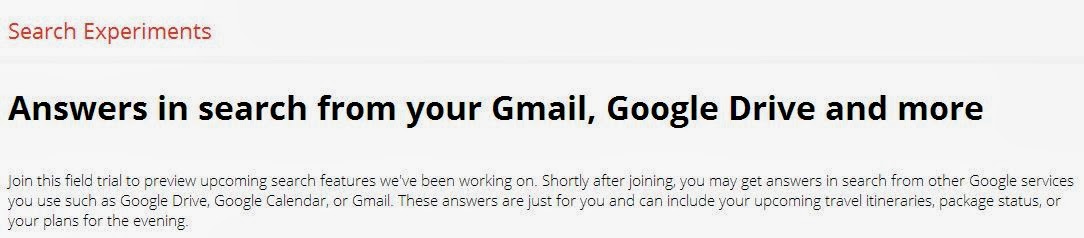
2.  Google Search for Drive and Gmail

Another tool to use is the ability to search through your email and Google Drive from the Google search.  While this is still in trial, anyone can sign up to be part of this.

Seach Google Drive and Gmail from Google search

3.  Memobutton 

This is another extension for Chrome and is based on the Spaced Learning theory.  It allows you to create flashcards for yourself as you surf the web and come across critical bits of information that you want to remember.  Just click the memobutton in the extension toolbar, and paste the text into the pop-up.  Double click the key word you want to remember and it makes a flashcard.  It then reminds you to review these flash cards periodically.  

Creating flashcards while surfing the web - get periodic reminders till you master the content

There are many other tools but if you use Chrome as your default browser these will meet most of your needs for storing and searching and remembering information that you find.


Friday, October 19, 2012

The Search Hub - search the Web, Email, Cloud storage and Bookmarks from one place!

We know how Google transformed how we find information.  It is the default search engine for majority of users.  But many users may not be aware of 2 features that help me tremendously.


  1. Google is now doing a field trial that lets you search your Gmail and Google Drive for the search terms
  2. When you search using Google it can simultaneously search your Diigo Bookmarks.  
So now you can from one hub search the web, your email, your cloud storage and your bookmarks!  

Google Search Field Trial - search Gmail and Google Drive from Google Search!

Search your Diigo Bookmarks from Google Search.