Sunday, December 2, 2018

Ring Your Phone from Fitbit Versa

So the Black Friday genie was good to you and you got a Fitbit Versa (or Ionic)?

If you are interested in doing some cool things with this device and make it really smart, you need to learn about IFTTT and Switchr.

Even if you don't have a smartwatch, it is a good idea to get an IFTTT account.  With it, you can do really useful (not just cool) things like saving a tweet you like to your Diigo bookmarks automatically.

If you have a Fitbit Versa (or Ionic) you can create buttons on the watch face to extend the functionality of IFTTT to your wrist.  A useful button would be one that would help you find your phone in the house by ringing it.  [if you have a smart speaker, you can achieve this same objective by setting it up to ring your phone when you ask but you are more likely to have your watch with you at most times rather than the speaker!].

What you need to do:
  • On you phone - install the 
    • IFTTT app from the App store and 
    • Switchr app from within the Fitbit app.
  • On the web, create an account on IFTTT
    • Search "webhooks"  click on Connect and under setting find your URL with the private key -- the part after https://maker.ifttt.com/use/ - will be about 21 characters.  Do not share this key with others.
  • On your phone
    • log into IFTTT and create new applet (big +sign at top right)
    • If this -- use webhooks and use "Ring_phone" (without quotes) as event name
    • If that -- use call phone (you will enter your own phone number and verify it with PIN that is sent to you)
    • Save this
  • On your phone
    • Go to fitbit app then
    • your device then
    • Apps then
    • Switchr then
    • Settings then
    • Create button
      • URL use https://maker.ifttt.com/trigger/Ring_phone/with/key/{key}
      • Instead of {key} enter your 21 character private key mentioned above
      • Name the button RING
      • Choose the color of the button
    • Sync the fitbit app with your fitbit versa/ionic
  • You should now have a button (you can find it under your apps - wipe in from right) called RING
    • Tap on the button and wait a few seconds
    • Your phone should ring.

Hope this works for you. Once it does, it seems like magic. You can impress a lot of friends and maybe, just maybe it will help you find your phone from under the cushions!




Sunday, November 4, 2018

Laptops in the Classroom

Content outline:

  1. What do teachers have against laptops in the classroom?
  2. What have been the usual responses to these points?
  3. ”How having the right hardware and software combined with evidence from research may strengthen the case for allowing "laptops" in the classroom?

What do teachers have against laptops in the classroom?


There is evidence that learners are less engaged and more easily distracted when they have laptops in the classroom.  They surf the web, visit social networking sites, get notifications and alerts and tend not to focus on the teacher in the front of the class (Ravizza et al).  In addition, their screens can distract other students sitting around them (Sana et al).  The teachers who cannot see what is on their screens wonder if the student is looking up information related to the class or engaged in irrelevant activities.   To some, the vertical screens may appear to act as barriers in small learning groups.  There is also the debate about typing vs. handwriting, with a recent study showing that taking handwritten notes leads to better recall compared to typing (Mueller and Oppenheimer).

What have been the usual responses to counter these points?


Educators who encourage students to bring their laptops and mobile devices to class suggest that if they (the educators) prepare for this and design their lessons appropriately, the students would be engaged in the learning process and not go off surfing the web.  They recommend creating exercises or using specific tools that require the students to use their devices in a meaningful manner that would enhance their learning (Erping et al). If in spite of this, the students do misuse their devices, the problem is the learners', and they would probably not learn even if they did not have laptops and smartphones in the classroom.

But how does one counter the arguments against the vertical screen causing a distraction and being a barrier and that typing leads to poor recall?  This is where the appropriate hardware and software can solve the problem.

A number of devices like the Surface Pro, iPad Pro, HP Spectre etc allow the screen to be pushed flat and to take handwritten notes with digital ink using a stylus. Software like OneNote allows collation and organization of all kinds of files (Word processing, PDFs, videos, slide decks etc) in a digital system that resembles the 3 ring binders from high school.  These files can be annotated using a stylus, searched (including the handwritten portions), automatically saved and updated, stored online and accessed on multiple devices including smartphones.  Combine this with apps like PomoDone which allow blocking of specific sites like Facebook or Twitter or Gmail during class and I believe we have a very convincing case for allowing these devices in the classroom.

So how can a teacher leverage the presence of such convertible 2-in-1 laptops and OneNote in the classroom?  What can they try with their lectures and slides to convince them allowing and even encouraging the use of these tools in the classroom can actually help their learners?

There are a whole host of tools to help teach and learn in the classroom like audience response systems, gamification software etc. In addition, you can employ techniques like think-pair-share and flipped classrooms to enhance the learning process and engagement without introducing laptops in the classroom. But what if you want to just take some baby steps, pilot something quickly and easily before redesigning your lesson plans?

If the teacher already has a slide deck then they can provide the slides ahead of time to the students so they can download and "print" them to OneNote.

Skeletal (Partial) vs. full handouts

So how do handouts work?  Won't having the handout ahead of class reduce motivation to attend class?  Will they be even more inattentive since they have all the information already?
The answer to these questions lies in the study that showed that when learners are provided handouts with only skeletal notes instead of fully detailed notes, they have a better recall (Prabhu et al; and Russell et al).  The students fill in the gaps in the skeletal notes as they listen to the "lecture" (Yes, yes, ideally the good teacher should not be lecturing).  The students given skeletal notes have better recall of the information learned in class than those given full detailed notes. This option will require the teacher to create 2 versions of their slide deck - one with just the skeletal format for handouts ahead of class and one for presentation during class.

Active note-taking

If the teacher does not want to make the effort to create these 2 versions, they can still use their full handouts but then they need to encourage their students to take active notes in class.  It has been shown that when students create their own questions about the content, write self-explanations to answer those questions and summarize what they learned, they retain information better than when they just highlight and underline (Dunlosky et al).  One well-known format of active note-taking is Cornell notes, and there is mixed evidence of its ability to enhance test performance.


`


Sunday, April 29, 2018

And..... Office Mix is back (well almost!)

The previous post was all about the death of Office Mix and a search for alternatives. 
The best option was

  • Create a narrated slideshow in PowerPoint
  • Save as a video
  • Upload to YouTube as an unlisted video
  • Use EdPuzzle to embed the video and insert questions
This solution is probably the optimal one at this point as the EdPuzzle interface is quite intuitive and it has decent learning analytics.  

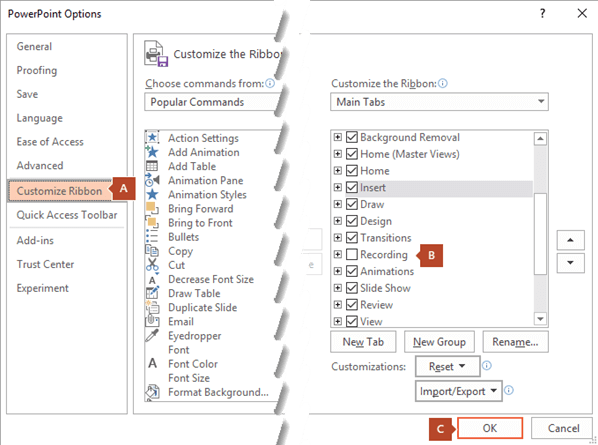
But it seems Office Mix is being reborn as an embedded feature in PowerPoint.  MS had promised as much but it is good to see that the first part of that promise is now delivered.  If you have Office 365, you can enable the "recording tab" and this includes all the features that were provided by the Office Mix add-on.
Adding a Recording Tab to PowerPoint


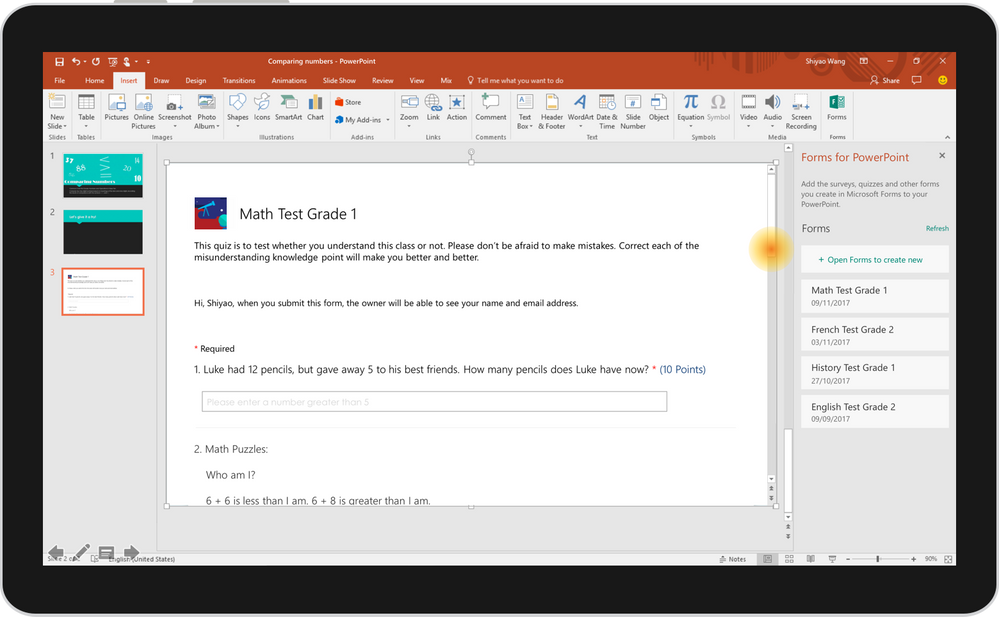
MS plans to support quizzes using MS forms and hosting using MS Stream.  


Adding quizzes in PowerPoint using MS Forms (under development)

I look forward hopefully to when these will be available and work seamlessly like Office Mix did.


Monday, October 23, 2017

On the Death of OfficeMix

OfficeMix from Microsoft is a fantastic one-stop-shopping tool for creating flipped classroom activities.  It has terrific built-in features including:

  • Slide narration
  • Slide annotation
  • Video capture with front/rear camera 
  • Screen recording (for capturing online videos or software training)
  • Interspersed questions
  • Unlimited Hosting
  • Learning Analytics

I have pointed many educators towards this tool as most are already familiar with PowerPoint and can adopt this quite easily.  So it was with some sadness and frustration that I read that Microsoft will turn off OfficeMix by mid-2018.  The features of OfficeMix will be incorporated in PowerPoint 365 and the videos will be uploaded to Microsoft Stream which is limited to an internal-only audience.

In a way, this is a blessing in disguise as it prompted me to search for alternative solutions, particularly free ones with cross-platform compatibility.  This is important as OfficeMix was not an option for Mac users unless they used a tool like Virtual Box or Bootcamp to run Windows.

There are several options out there but the one that I found the most customizable was to use a combination of Google Forms (with/without Google Classroom).
Google Forms recently allowed the creation of a quiz with automatic feedback and scoring.  You can also embed a YouTube Video into a Google Form.
PowerPoint already as the ability to record the slide narration and annotation which can be saved as a video.  By uploading this video to YouTube you can embed this into a Google Form.  You can thus use a combination of your own videos and those available publicly on YouTube.
You can hyperlink to any video from within the description area of each section of the form.  Within these hyperlibks, you can specify start and end times on the videos to split videos into appropriate segments.


The steps would thus be:

  • Decide if there are public YouTube videos available that will meet your needs
  • If there are not, create your own video using PowerPoint narration and animation and annotation
    • Upload your video to YouTube
  • Grab the URL for your videos and the public YouTube videos you plan to use
  • Jot down the start and stop times of each video and add at the end of the URL
  • Create a Google Form, and create multiple sections, one of each video and related questions.
  • Insert the URLs in the description of each section create questions 
  • If you want to use the entire video, you can embed it in the form using the "add video button"
  • Add questions following the video, with answer keys and points.
  • Share the form with learners.
See below for an example of one such activity that teaches these steps (the videos may not work in this embedded form). For full functionality of videos view it full screen here. Try this out and let me know what you think.


Wednesday, May 24, 2017

Brydge 12.3 Keyboard to convert a Surface Pro 4 into a Laptop

The Surface Pro (3/4) is one of the most popular devices.  It has a large number of things going for it (listed at the bottom of this post).
It does have a couple of drawbacks and a big one is its "lapability".  This means that there are certain situations where it is difficult to find a stable way to position the Surface Pro.  I personally have never had a big issue with this but I can see why people would complain.  The other limitation is that the type cover's magnetic attachment to the device is not strong enough to support the weight of the Surface Pro and thus you cannot hold it just by the keyboard like another laptop.

I was very excited to see the Brydge 12.3 bluetooth keyboard come out for the SP3 and 4.
I got it last week and while it was terrific in many ways - which have been outlined on Reddit by @prjkthack, it too has one huge problem.


The keyboard holds the SP4 by two "claws" which are covered by silicone shims to prevent scratches.  The hinge is quite firm in order to support the weight of the SP4 at any angle.  The problem is that when closing the SP4 all the pressure to rotate the hinge falls on the 2 points where the shims hold the screen.  This causes distortion of the touchscreen.  You can see this in the video above where in the lower left corner of the screen where you see yellowish vertical bands of pressure.  I had a friend try this out with another SP4, changed the shims and tried it with an SP3 and it still caused the same problem.  I wonder if anyone else is noticing a similar problem.

I am not sure what the long term implications of this pressure would be on the incredibly beautiful touchscreen but I am not willing to test it out.

Also as others have commented, the trackpad is not as good as the glass trackpad of the type cover - it is less responsive, the left click does not work very well and selecting a line of text is not accurate.

I tend to use the SP4 a lot in the tablet mode as I read and annotate PDFs or make storyboards for presentations in PowerPorint by writing on blank slides.  For this, it is remarkably easy to just flip the type cover back under the SP4 and it immediately converts to tablet mode.  With the Brydge, it is definitely more involved to take the device out of the claws and you still need to convert to tablet mode manually.

Obviously, there are folks who use the SP4 almost entirely in laptop mode and this last point may not apply to them.  For me, these issues combined with the increased weight makes this Buetooth keyboard less than ideal.  It is possible that with more extended use, I would get used to it but the pressure distortion of the screen scares me too much to try this for that long.


What I love about the SP4:


  • One device to replace laptop and tablet
  • Light and portable
  • Superb stylus, handwriting recognition, touchscreen
  • High resolution, brilliant screen
  • Terrific practical integration of software to get work done - browser, pdf, word processing, note aking
  • The Very innovative kickstand that lets you angle the screen at any angle and still provides excellent support.
  • Type cover that is light, responsive, with a glass trackpad that has the right size, friction, accuracy, and responsiveness.
  • Monday, May 16, 2016

    Google Slides Q & A - Collect audience questions

    Google Slides is a very good free presentation tool.  It is particularly good if you want to:

    1. Collaborate with multiple presenters to build a slide deck
    2. Present to a worldwide audience via Google Hangout
    3. Present from a mobile device like a smartphone
    And now Slides has added a new feature that makes it incredibly useful for almost any presentation setting.  Slides now can allow for collection of questions during a presentation. You can read more about this feature here, or watch the following video:


    The steps are pretty straightforward:
    1. Create/upload a presentation (you can upload a PowerPoint presentation and it will be converted to Slides format 
    2. At presentation time, in the upper right corner use the drop down next to "Present" and select "Use new audience Q & A.."
    3. Click start new 
    4. The URL for the Q & A page will be displayed on your slide.
    5. Users can enter questions (anonymously or not)
    6. They can vote others' questions up or down
    7. You can see the most popular questions and answer them during or at the end of the presentation
    This is a great tool to engage your audience and make your teaching more student-centered.

    I recently used this tool for the first time at a keynote I was delivering at the Massachusetts General Hospital ECOTE 16 education symposium.  While using this feature was easy, I had a slight wrinkle.  I like PowerPoint due to the granular control on graphics, animations and transitions and also I present using a Surface Pro that lets me write on the slides as I present.  I did not want to give up on this functionality.  


    So I ran Google Slides in the background!  I went through the present >> use audience Q/A steps, >> grabbed the URL for submitting questions and pasted this on my intro slide in PowerPoint.

    It went like a charm.  I got the best of both worlds -- PowerPoint on a Surface Pro and Google Slides in the background to collect questions!  I was able to answer some of the most popular questions before running out of time.  But I was able to review all the questions that got asked which helps me prepare for a similar talk I might give in the future.

    Here is a list of all the questions which I was able to get from the "tools" menu in Google Slides.

    Saturday, April 30, 2016

    Lotus in the Mud: Lessons for Happiness in Social Media

    Via Abraham Morales on Flickr

    This was a pretty crazy week on Social Media with posts running the gamut from shocking and depressing to good-natured fun to "feel-good" and uplifting.  Just as I felt myself feeling dragged down by the online cruelty and hate I found some fun and beautiful posts that brought hope and happiness.

    A lot has been written about the potential of social media for learning and education but the fear that one slip can become a huge career-changing faux pas puts many caveats on this potential.  The perceived anonymity, the endless seeking of superficial likes and retweets and viral nature of the medium, have contributed to the rise of a culture of mobs and bullying by hordes.

    The week started with a post on NY Times about the YouTube video of two female sports journalists who fought back against their harassers. The only way to be able to watch even part of the video was by thinking about the courage of these two amazing people and ignoring the mindless, hateful comments.

    And then the terrible story of a young man in a NFL draft (the lottery for a lucky few who survive the unpaid commercial exploitation that is NCAA football).  While I don't know anything about this particular person - his skills, his character, his background - the story was gut-wrenching.  Someone apparently got access to his Twitter account and posted a video of him smoking cannabis via a "Bong" device, which is something like a hookah.  This was done just before the draft and led to several teams skipping him and choosing someone else.  While there are many perspectives on this, the episode captures the hate, jealousy and power of the medium and the huge risks it brings.

    But as the week went on, there was something better - this story via Buzzfeed.  An embarrassing photo of a firefighters rescuing a group of police officers stuck in an elevator.  Apparently 12 tactical team officers got on an elevator - they exceeded the weight limit- and the elevator got stuck.  The firefighters before they rescued them took a photo and there was some good-natured banter back and forth on Twitter.
    Image via @Gregg Favre  
    And this morning I woke up this post from the POTUS and FLOTUS helping Prince Harry increase awareness of the Invictus Games which uses the power of rehab sports to help injured servicemen/women in the road to recovery.


    It was great to see these last two posts because in a big way they helped overcome the negative feelings generated by the first two.  The positive feeling helped restore faith that the medium can be used for good and fun.
    While  we have read about studies regarding mood disorders and depression caused by Facebook it is good to think about the key factors in happiness:

    1. Good social relationships (belonging)
    2. Spending a part of your day doing things that you are good at and passionate about (mastery) and
    3. Having autonomy and freedom to make life decisions (autonomy)
     - and this excellent piece in The Atlantic shared by Eric Warm  on Twitter helped start off the weekend.  The article summarizes an interview with Raj Raghunathan the author of "If you are so smart why aren't you happy?"  He advocates for the Abundance-minded approach to life vs. the Scarcity-minded approach, 
    "One extreme is a kind of scarcity-minded approach, that my win is going to come at somebody else's loss, which makes you engage in social comparisons. And the other view is what I would call a more abundance-oriented approach, that there's room for everybody to grow".


    He then goes on to talk about the dispassionate pursuit of passion,
    "...basically the concept boils down to not tethering your happiness to the achievement of outcomes"
    "Ultimately, what we need in order to be happy is at some level pretty simple. It requires doing something that you find meaningful, that you can kind of get lost in on a daily basis". 
    To cap it all was the terrific NPR story of students reporting on their teacher -  and the most important rule of her class - BE KIND!

    Hope the Twitterverse is listening to her!

    Tuesday, November 10, 2015

    Hottest stocking stuffer this holiday season?

    Google Cardboard, the under $10 device that allows you to experience virtual reality with you smartphone is my selection for the most popular gift this year. 

    Everyone who sees it gets a big smile on their face followed by, "Oh my gosh" or "How does this work?" Or "Wow!"  

    By leveraging the smartphone which already has a chip, accelerometer, GPS, hi-res display and app stores, Google has hit a home run almost like Chromecast. The price cannot hurt either. 

    So what can you do with it?
    1.  The Cardboard app has a some great use cases highlighted by the demo video. This is a great place to start. 
    2.   VR reality apps like roller coaster experiences
    3.   The palace of Versailles is a great example of a virtual tour guide. 
    4.   Collection of great photospheres in the updated Google Street View app  I loved the Sagrada Familia and Machu  Pichu. 
    5.  The NY times app (NYT VR) with its great refugee camp story and the incredible Mini Cooper memories video. 
    6.  Watch 360 degree videos on YouTube (Android only for now). You can find this on the #360 Video channel. The resolution of these videos is nowhere near the NYT app
    7.   The most crazy thing was seeing my own street in Google Streetview.  It was almost like standing there on the street looking at my house but I was playing with this inside the house.  The clash of RL and VR took my breath away for a second. The only thing that prevented it from being perfect was the Streetview was shot in the height of summer and right now it is the fall with almost no leaves left. 

    It was a great experience and it is just the start of the journey. Looking forward to some great applications of this technology except we will probably see a spate of 3D selfies. 


    Saturday, August 1, 2015

    Making sense of Wi-Fi Sense - Different implications of Home vs. Business!

    With the roll out of Windows 10, the feature that is ruffling the most feathers is Wi-Fi sense.

    What is Wi-Fi Sense? 

    Wi-Fi Sense lets you "automatically" share your password to access Internet using your router with a "friend". Before you get all hot and bothered, there are a few caveats:

    • You have to first tell Windows 10 that you do want to share that particular router's information
    • You then have to select which group of contacts (outlook, skype or Facebook) will be able to get this information
    • The contacts have to have a Windows 10 device
    • The password that is shared is encrypted
    • The contact cannot share the connection information with their contacts without knowing the actual password - which they don't because it is encrypted.
    • They cannot connect with Wi-Fi Sense unless they themselves as shared one of their own connections.

    What does this all mean in practical terms?

    Setting 1 - Home

    The most likely setting is when you have a friend visiting your home and needs Internet access.

    Scenario 1.
    If the following four conditions are met:
    1. They have a Windows 10 device
    2. They have WiFi Sense turned on and are sharing one of their own connections
    3. You have WiFi Sense turned on and are sharing you own Internet connection
    4. They are in your Outlook.com or Skype or FB contact lists
    Then they will be automatically connected to the Internet without asking you for the password.
    They will not be able to share this information with their own contacts (unless those contacts are also your contacts in one of the three groups listed above).
    WiFi Sense options in Windows 10

    Thus this scenario does not pose much of a concern for me.

    Scenario 2.
    There is the alternative scenario that is more bothersome.  Suppose you did NOT turn on WiFi Sense.  Then they will have to ask you for the password.  Often you will just tell them the password or write it down for them.  If they have a Windows 10 device, they can now share this information with their contacts.  This is because they just need to know you password when they elect to share the connection information.

    So my suggestion:
    If a friend has a Windows 10 device, do one of two things
    1. Turn on WiFi Sense so they get an encrypted password.  The conditions listed above in Scenario 1. would still need to be met.  OR a lot simpler:
    2. Offer to type in the password for them (without them seeing it) on their device and select
      'Not shared'.  If they ever want to turn sharing on, they will be asked for the password which they will not have.  

    Setting 2 - Small Business


    Now take a different setting - a small business for example
    They could actually turn WiFi Sense on and tell people to connect with them on Facebook.
    If they do, they would automatically get free WiFi!
    This might become a great marketing tool once Windows 10 becomes more ubiquitous.
    Of course the person would need to have to use their own Internet access to connect to Facebook first and then they would be able to get WiFi through the small business or they could have added them on Facebook ahead of time.
    I am not sure if this would work right now for FB pages or just for FB friends.  But with this does seem quite possible in the not too distant future.

    Sunday, May 31, 2015

    Creating 3D models with your SmartPhone

    Creating a 3D digital representation of a real life physical object seemed like an impossible task for an amateur. But now this has become quite simple for anyone with a smartphone.

    I tried my hand at this using 123D Catch (by Autodesk)  to explore the ease of use, quality of output and ability to share and export.  


    Here is the link

    To view the 3D rendering

    1. Click on the image or link above
    2. On the page that loads, click on 3D view (at the bottom of the image)
    3. You can use your mouse for navigation control (click on "?" for instructions or see below)
    What did I learn from this exercise?
    1. The process was quite simple - all you need is the app and a smartphone
    2. Make sure you take shots from about the same distance, with good lighting and follow the grid on the app.  It is a lot like photosphere or other similar apps
    3. The upload and processing takes significant amount of time.  About 1-2 hours.
    4. Once done, you can download the files for the model (*stl) 
    5. You can make your model public and share with others.  You can tweet, Pin, etc.  You also get an embed code which for some reason did not work for this blog post.
    Next steps:
    Explore use of this tool for anatomy education!

    Tips for navigation
    1. Zoom in to the drummer - on touch pad you may have to use 2 finger slide, on mouse use scroll wheel
    2. Pan to center the drummer - Shift + left click + Drag (slide on touch pad)
    3. Rotate - Left Click + Drag (slide)

    Thursday, May 28, 2015

    Google Photos - Machine Learning that is Insanely Good!

    Google just released the new version of Google Photos for desktop, Android and iOS and after using it for just a few minutes I am completely blown away.

    While it is many great features, the "search for photographs" is what took my breath away.  I started off searching for "Wedding", "Beach" etc and then moved on to specific landmarks like "Taj Mahal" and "Chichentiza" and it performed remarkably well.

    Then I tried "cricket" and the results were stunning.
    Here is a sample of what it found in my photo library:

    1.  This was not a big deal - it had tons of clues that it was a cricket match
    This was from a famous test match in England
    2.  The next one was a screen capture from a smartphone of a scorecard from a cricket match

    This had the word "Cricket" in the photo
     3.  This was when I started to really be amazed.  This was a screen capture I took of 3 women from Afghanistan celebrating a famous victory.  The only hint here was the score at the bottom.

    Afghan women celebrating a famous victory
     4.  This one had few background clues to this being a cricket match.  It is possible since I had grabbed this from the web that Google had indexed it as being a game of cricket.
    Cricket match in ice and snow.

    5.  This one was totally amazing.  The FIFA trophy would make you think that Google would index this under soccer.  But the 2 people flanking the trophy are 2 famous cricket players.  Google recognized them and brought this up in the search for cricket.  
    Tendulkar and Ganguly 
     6.  And lastly - this grainy shot of my TV showing a cricket match - all you can see is the helmet.
    Cricket match on TV


    Between the amazing experience with Skype translator and this one with Google Photos it seems that machine learning has reached beyond our wildest expectations.


    Sunday, May 17, 2015

    Human Learning Needs in the Age of Machine Learning

    Yesterday I experienced quite a coincidence that helped me crystallize my thoughts regarding machine learning; as I was scanning my Twitter and Google+ timelines and my Inoreader feeds each site had a post about machine learning. This post is about 2 common questions I get asked and how these posts helped me reflect on my responses to these questions.

    Due to my work with the IBM Watson research team, I often get asked these 2 questions by other physicians:

    •  The first question is if/when computers are going to make physicians redundant.  My response is that at present the vision is to create Artificial Intelligence systems that would help healthcare providers provide more efficient or better quality care and not to replace them.  Clearly, no one has a crystal ball and the expert opinions run the gamut from fear of AI to tremendous optimism.
    From Newsweek

    Peter Diamandis and Steven Kotler
    • The second question is how to train our current generation of learners to prepare them for the future where they will work closely with artificial intelligence systems.  My response here is that students need to be part of building these systems in their disciplines.  Just like in high schools students take immersive experiences to learn foreign languages, our learners need to start doing electives in computer sciences and  data analytics departments or companies to leverage these technologies to solve problems in their disciplines.  Thus medical students should work with computer science students to use big data from wearable devices to improve health of a population for example.  This will not only help solve problems but they will learn first hand the limitations of these tools and recognize these in the future rather than just blindly relying on their recommendations.  
    So what were the three posts?
    This is a post about a paper by researchers at Rutgers University who developed machine learning algorithms to help recognize styles and artistss of fine art paintings with a great deal of accuracy.  But the most important lesson was that when the algorithms failed to identify an artist correctly, there was a lesson to be learned.  There was a similarity in the paintings that was evidence of how the two artists (the correct one and the one wrongly identified by the algorithm) were similarly influenced.  Something that an art historian may not even have been aware of.
    From: MIT Technology Review (Click image for web page)

    2. Image Scaling Using Deep Convolutional Neural Networks

    This amazing post describes in an (relatively speaking) easy to understand manner how a neural network was designed to process low resolution images to "fill in the missing pixels" to produce high-res images for Flipboard posts.  The post is a great one for our high school and college math students to see how concepts that they are learning have tremendous practical implications.

    Courtesy Normal Tasfi via Flipboard

    3.  a16z Podcast: Making Sense of Big Data, Machine Learning, and Deep Learning

    This is a terrific 27 minute podcast the quotable quote being,
    "Machine learning is to big data as human learning is to life experiences" 
    It has a great story of how Larry Page talking with Google employees exhorts them to shorten the latency between entering a search term and getting the results.  When asked if what the final goal should be, whether it should be zero, he responds, "Why should we stop at zero?".  The goal should be that machines should be able to anticipate our needs not just respond to our requests.  Nguyen goes on to discuss why machine learning needs to be part of every app.

    Sonal interviewing Christopher Nguyen CEO of Adatao

    Given enough data, machine learning can identify patterns that humans cannot and will be able to predict problems before then happen.  Thus humans know that driving a car with poor brakes and wipers, very fast in rain on a curvy road often leads to disasters. 
    We have an increasing torrent of data from medical literature, genomic analysis, electronic health records and wearable devices. When we start making this data available to appropriately programmed machines, patterns will emerge that may help predict or prevent heart attacks, strokes and cancers.  
    This is what our learners need to get comfortable with so they know when to rely on these predictions and when to spot errors and learn from them.

    Tuesday, May 12, 2015

    Microsoft Strings Together an Amazing List of Innovations!

    This has been an amazing year for Microsoft.  The list of hardware and software innovations that they have come out with is mind boggling.


    1. Surface Pro 3 - probably the best single device I have owned - replaced my laptop and iPad and Android tablet in one fell swoop and added the functionality of the superb Stylus.
    2. Office Mix - the easiest way to create content for flipped classrooms
    3. HoloLens - the mixed reality headset that has huge potential in education
    4. Surface Hub - Large "Smartboard" with video conferencing, OneNote and motion sensing built in.
    5. Microsoft Band - for $200 a fitness tracker with ability to read notifications, tweets, text messages, email, calendar alerts, heart rate monitor, GPS etc.
    6. Windows 10 with Microsoft Edge - a browser that lets you annotate the web
    7. Skype Translator (in Preview) - instant translation between English, Spanish, Mandarin, Italian and other languages coming soon.
    On top of this making all of Office apps available on both iOS and Android and also allowing developers to quickly convert their iOS and Android apps for Windows is a big shift in MS philosophy.

    Competition is great for consumers and I am glad MS is back in the fray in a big way!

    HoloLens for Anatomy Education


    Office Mix Video


    Surface Hub

    Web Note feature of Microsoft Edge Browser

    Saturday, April 25, 2015

    A Personal Learning Network becomes a Print Journal Issue: Why Academics Really use Twitter

    Social Media allows a motivated and engaged learner to build connections that can enhance lifelong learning.  The connections become a learners Personal Learning Network or PLN.  The ability of social media to help a learner find and connect with the right people that might be otherwise impossible to "meet" in real life is one of its huge potential advantages.

    This can be a difficult concept to convey to someone who may have a very negative attitude of Twitter.  One can hardly blame them for thinking that Twitter is a time waster, that there is a huge noise to signal ratio with very little tangible benefit.

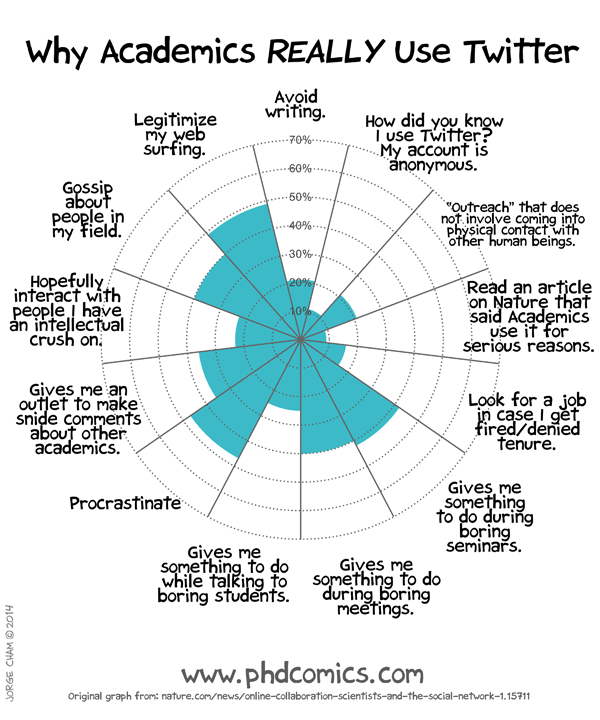
    A famous Nature study showed that very few academics use Twitter compared to sites like Google Scholar.  This led to a spoof by PhD Comics on "Why Academics Really use Twitter".  This is quite funny maybe because it has an element of truth for those who use Twitter.  At the same time infographics like this might unintentionally dissuade people from trying out Twitter as it may reinforce their beliefs about its lack of usefulness.

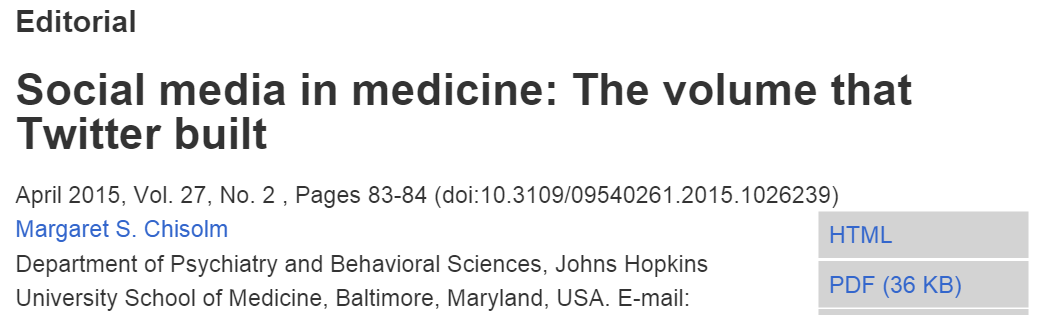
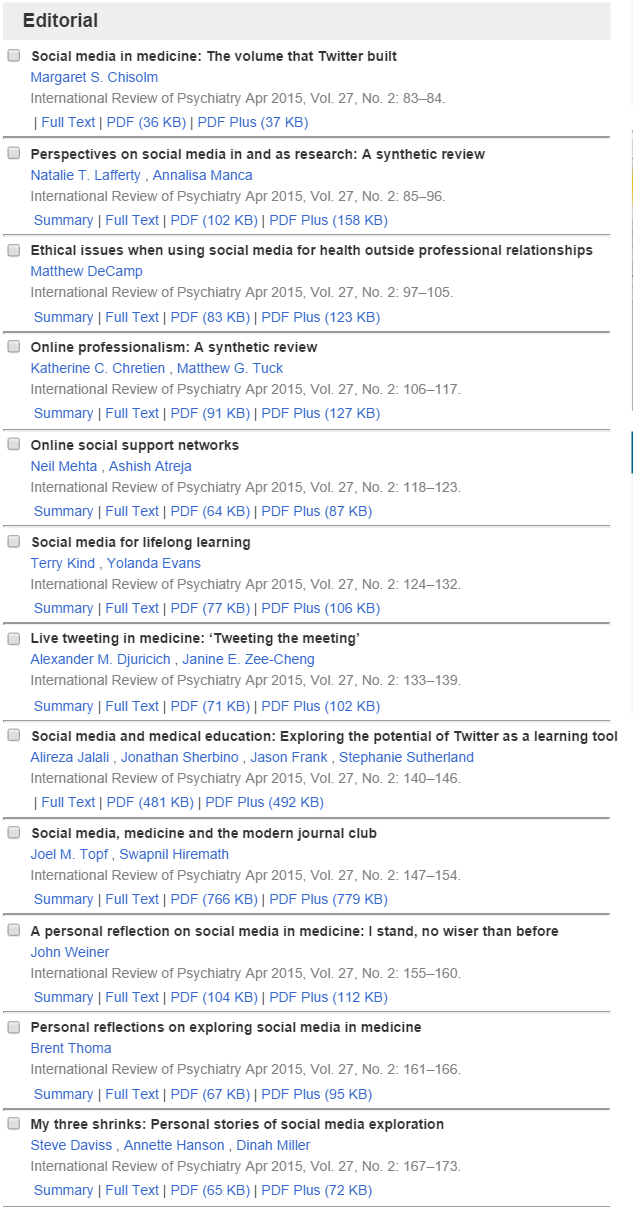
    Now we have a great example of how a PLN created on Twitter led to an entire issue of a print journal.  The credit goes to Margaret Chisholm who was the editor of the special issue of "International Review of Psychiatry" and put together the issue with the help of a group of authors who mostly got to know each other first on Twitter and are part of a large PLN of health care social media users.


    Granted, the special issue was regarding the use of Social Media but it could well have been any other topic in biomedical sciences where the scientists engage in social media.  This special issue of a print journal may be an excellent showpiece of the huge potential benefit of social media for academics - to create a PLN for lifelong learning.


    Sunday, March 29, 2015

    Timelines to represent the history of medicine

    "Those who do not study history are condemned to repeat it"

    Understanding the history is critical to comprehending the current status of any political situation.  Thus one cannot even being to come to grips with the situation in the Middle East or in Nigeria without knowing how we got here.

    The same holds true for medicine.  Using history helps teach our students about various complex  therapies like antibiotics, anti-lipid medications etc.

    Thus whenever there is a situation what is difficult to grasp, studying the history of how we got here helps to understand it.  The fact that >90 years after the discovery of insulin by Banting and Bates this critical medication is still not available off patent is almost unbelievable.

    An article in the NEJM highlights this by tracing the history of the various forms of insulin to clarify the current situation.

    A timeline makes this easier to follow.  Making the timeline took less than 5 min on a free tool called Dipity.  It allows for addition of images or video and can be shared to encourage discussion.
    Explore the timeline embedded below by clicking on blurbs or zooming in and out.

    Getting students to work collaboratively to create timelines of major therapeutic advances in key areas of medicine can help them build a deeper understanding of the subject.  It can help them identify potential areas for research and quickly digest newer advances as they occur, by recognizing their place in history.

    We know that we learn by doing, and thus, we should encourage students to create these timelines rather than just view timelines created by others.

    Friday, December 26, 2014

    How "The Interview" hack helped Google show off its capabilities

    As 2014 draws to a close, "The Interview" became the most talked about movie of the year.  While many people may have otherwise ignored the Seth Rogen low-brow comedy, the Sony hack made it a must-watch movie.

    An unexpected fall out the event was the release of the movie on online platforms after several theater chains refused to show the movie due to safety concerns.

    For Google agreeing to show the movie was probably a risk-reward proposition.  Clearly there was some risk of cyberattacks, and of not being able to provide a smooth experience for what was expected to be a massive demand.  The potential reward was to expose the audience to a somewhat less used path for accessing movies and for providing producers with one more option to release content.

    While several of the online sites had some problems, it appears that Google came out unscathed providing a very smooth experience.  In our case, with a large number of people in the house over the holidays and everything closed for Christmas, we bowed to popular opinion and decided to watch the movie. It was a completely seamless experience.  The fact that this experience involved using several devices and apps made it even more remarkable.

    Let me describe the steps I took to access the movie.  There are many options, and there may be much simpler ones depending on your devices and platforms.

    1. We have an LG SmartTV
    2. A Chromecast device
    3. iPhone 5
    4. Win 8.1 Surface device.
    So this is how we connected
    1. On the Surface went to Google Play and used Google Wallet to rent the movie.  Once rented, you have to start viewing within 30 days and once started, complete watching within 48 hours
    2. On the iPhone, installed the Google Play for Movies and TV app
    3. As soon as I logged into it, the movie I had purchased in step 1 showed up in My Movies
    4. Start the movie and chromecasted it to the TV
    The whole thing worked without a single hitch.  The quality of the stream was superb and there was no issue with loading, buffering etc for the HD version.  
    At the end of the day I was impressed at how well it worked and once set up the technology was invisible, and everyone could focus on the movie uninterrupted.  

    It is quite possible that more people will be open to using Google Play to watch movies and TV shows.  The great thing is that you can go to a friend's place and start chromecast movies from your library easily.  


    Tuesday, November 4, 2014

    Still waiting for your Gmail Inbox invite? - Make your Outlook work like the Gmail Inbox!

    The new "Inbox by Gmail" is a terrific way to help manage your email. For a long time, we have known how to do this but Inbox is designed to support that workflow.

    What is the workflow?


    • Do not open a message unless you are ready to work on it
    • Do not close a message without doing something with it
    • Use the following 4D actions
      • Delete it
      • Defer it
      • Delegate it
      • Do it 
    The problem with traditional emails is that we often cannot decide whether we need to keep an e-mail or delete it and this means we err on the side of caution and not delete the email.  This leads to a huge list of opened messages in the inbox causing a lot of stress.

    How does the Inbox handle this?

    It has tools for each of these actions.
    Thus you can do what is needed and "done" the message
    Or you can snooze the message and thus defer it
    Or you can forward the message (like any email client) and thus delegate it
    But the best part is that you can pin the message - which leaves it in the Inbox.
    If you Done a message, it is not deleted but archived and thus you don't have to agonize over this delete/don't delete decision.  You can "Done" a message with confidence knowing you can find it again if needed using the Gmail search.

    I love the inbox workflow and managed to clean up my entire gmail with this tool very quickly!
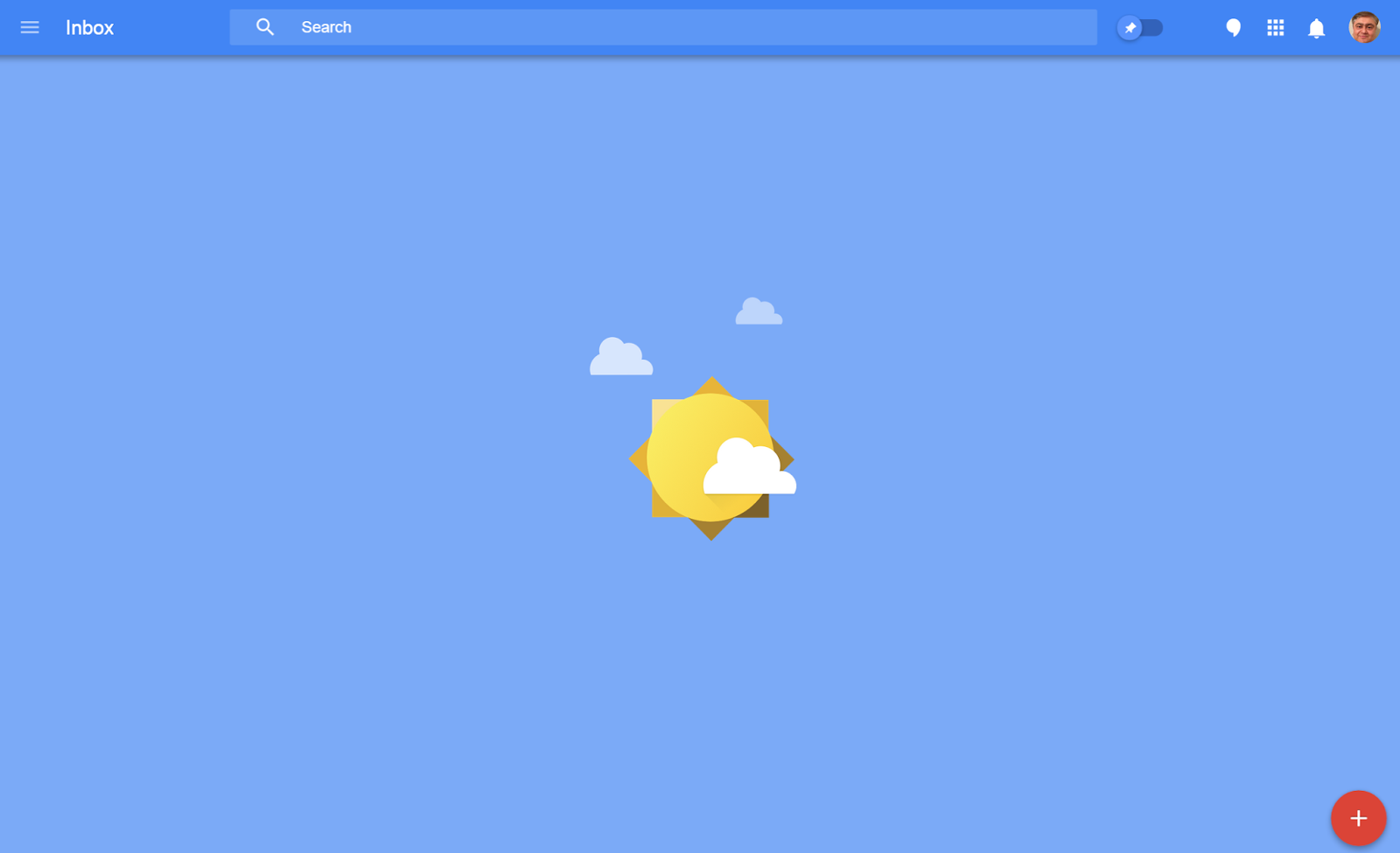
    Completely Empty Gmail Inbox!

    If you use Outlook as your enterprise e-mail client you can do all these things and set up the right workflow.


    The key step is: Create a "Search Folder" that is for mail that is "Unread or Marked for Follow up"

    This is your default view of the inbox.
    You can do all the key actions as follows:

    • Delete it - delete the email if you wont need it again
    • Defer it - use a flag and by right clicking it set it for appropriate time in future
    • Delegate it - forward to someone (or change to task for that person)
    • Do it - as usual
    • Pin it - when you flag a message it will be pinned in this Search folder view
    • If you open a message and do nothing - it is equivalent to "done" as it will drop out of the "Search Folder" view and still be available by searching the inbox.
    • You can drag a message to the calendar if you want to convert to a calendar appointment (Which you can't do yet with the Gmail Inbox)
    For me at least this method really works and keeps the most important messages in my default view and keeps me organized.

    Friday, October 31, 2014

    Share your availability for specific dates to meeting organizer (Applies to Microsoft Outlook)

    Do you ever get an e-mail from someone who is trying to arrange a meeting/conference call with multiple people who are at different organizations or institutions?  It often goes something like this, "Can you give me your availability for these dates or date range?"

    If they were within your organization, you would just tell them to schedule using your Enterprise Microsoft Outlook.  Often people are unaware that they can schedule meetings like this, or are hesitant to do so.  They may also be uncertain if your Outlook calendar is up to date.

    But what if the person organizing the meeting or conference call does not have access to your Outlook calendar?  They may use a variety of tools like Doodle or Calendly etc but these require you a follow a link and fill out multiple check boxes while viewing your calendar in another window.  Quite painful and time-consuming.  You have a couple of easier options:
    • Publish your Outlook calendar to the Web or
    • Sync it with a Google Calendar that you can share with someone
    But both these options may have security or privacy risks particularly if you put sensitive information into your calendar or work at a health care facility and have to abide by HIPAA Privacy rules.

    e-mail your calendar


    A simple option for this problem is to e-mail your availability for the specific date range using the Outlook e-mail calendar functionality.  This is super simple and something folks may not be aware of.  The steps are explained here by Microsoft.  

    The recipient gets an e-mail that looks like this:

    Try it the next time you get a message asking for your availability.  It will save you a lot of email and phone tag and your colleagues will appreciate it.

    The main risk is that if they don't schedule something soon, the calendar you sent them might be out of date.

    Wednesday, October 29, 2014

    Google's New Bookmark Manager vs. Diigo Chrome Extension

    Google just released the Bookmark Manager extension for Chrome.
    It has the following features:

    1. One Click Save
    2. Better organization
    3. Better search of bookmarks
    4. Sharing of bookmarks
    5. Add notes to the bookmark
    6. Nice visual interface - organized as cards.
    The best part of the new manager is that it would work across all device on the Chrome browser.

    While these are some good features, it would not convince me to switch from my favorite social bookmarking tool - Diigo.

    Search for Google Bookmarks Manager shows my Diigo Bookmark in right column.

    Diigo has some truly amazing features that make it indispensable.

    1. Ability to organize by lists, tags
    2. Annotate a web page with highlights and notes
    3. Share a link to the annotate web page so anyone who sees that link will see the annotations even if they don't have Diigo installed.  Try this link to see the lifehacker page annotated with yellow highlights. (see pic below)
    4. Ability to auto-search through the Diigo library even when doing an organic Google Search.  If any of the keywords in the search are in one of your bookmark titles or annotations, that bookmark will be listed to the right of the organic search results.  (See pic above)
    5. Very powerful social bookmarking features 
    The only (minor) drawback is that you need to select the appropriate tools for your mobile device.  Diigo does have specific tools for each OS (iOS and Android).  Also if you don't use Chrome as your default desktop browser, Diigo has toolbars for most popular browsers.  


    Diigo lets you annotate a web page and share a link to it that preserves the annotations